
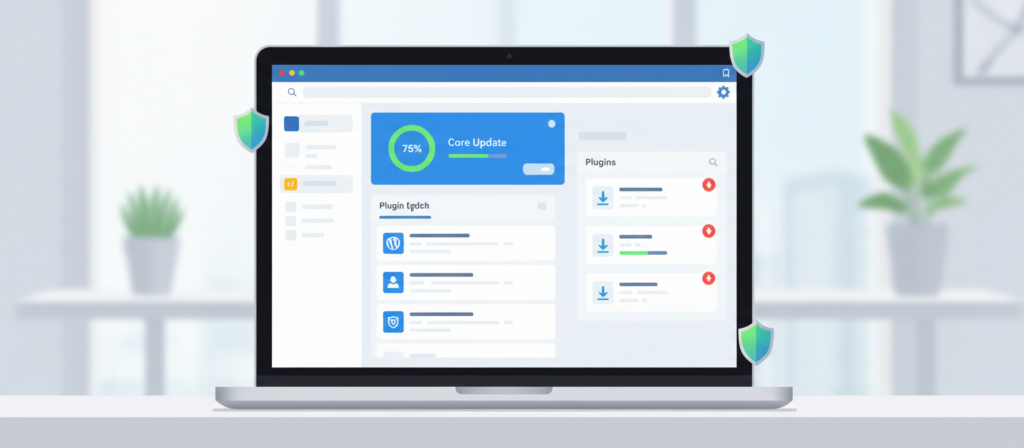
Updates aren’t busywork but the backbone of a secure, fast, and stable WordPress site. Core, themes, and plugins evolve constantly to patch vulnerabilities, improve performance, and keep up with modern PHP and browser standards. Skipping updates invites security risks, slowdowns, and random bugs. The good news: with a simple, repeatable process, you can stay current without breaking things—or losing sleep.
Why Updates Matter
- Security: Most hacked sites run outdated plugins or themes. Updates close known vulnerabilities before bots find them.
- Performance: Core and plugin updates often include query optimizations, lighter assets, and INP/LCP improvements.
- Compatibility: New PHP versions, database changes, and API updates require compatible code. Staying current prevents fatal errors and plugin conflicts.
- Features: Authors ship useful features (accessibility, editor UX, image formats) that make your site better over time.
Update Cadence That Works
- Weekly: Minor plugin/theme updates and small core releases.
- Monthly: Review major plugin milestones (x.0 or x.x where changelog shows breaking changes).
- Quarterly: PHP version check, database cleanup, and remove unused plugins/themes.
- Immediately: Security releases and critical patches.
Pre‑Flight Checklist (5 minutes)
- Take a backup (files + database). Verify it’s restorable.
- Note current versions of WP, PHP, and key plugins (SEO, cache, ecommerce, forms).
- Check site health in Tools → Site Health for notices and module suggestions.
- Review changelogs for major updates (look for “breaking,” “requires,” or database migrations).
Safe Update Workflow
- Staging First
- Clone site to staging (via host or plugin).
- Update WordPress core, then themes, then plugins.
- Fix issues here—never on production first.
- Order of Operations
- Update WordPress core
- Update parent theme (then child theme compatibility if needed)
- Update must‑use plugins and security/caching
- Update remaining plugins in small batches (by vendor or function)
- Test the Critical Paths
- Home, a few content pages, search, menus, forms, checkout/login if applicable
- Editor experience: create/edit a post, upload an image, run your SEO plugin
- Console errors and PHP logs for warnings
- Push to Production
- Maintenance mode on (for high‑traffic sites)
- Apply the same sequence of updates
- Clear caches (plugin, CDN, server) and regenerate critical CSS if used
- Maintenance mode off
When to Delay an Update
- Major version with breaking changes (x.0) and no urgent security fix
- Known conflicts in the changelog/issues (check vendor’s support forum or GitHub)
- Ecommerce/payment plugins right before a sale period—schedule off‑peak
Auto‑Updates: How to Use Them Wisely
- Safe to enable: minor plugin updates with strong vendor track records, security patches, and point releases.
- Keep manual: ecommerce, membership, booking, page builder, and complex SEO plugins.
- Tip: Enable email notifications on auto‑updates so you can review what changed.
Reduce Breakage Risk
- Keep PHP current and supported (8.1+), and ensure plugin compatibility before upgrades.
- Remove inactive plugins and themes—they’re security and maintenance debt.
- Prefer fewer, well‑maintained plugins over many niche ones; consolidate where possible.
- Lock down admin access with MFA and least privilege so no one updates recklessly.
What If Something Breaks?
- Roll back the plugin/theme using its previous version or a rollback tool.
- Restore from backup if needed, then reapply updates in smaller batches to isolate the culprit.
- Check error logs and browser console; disable conflicting modules or settings.
- Contact the plugin vendor with a minimal reproduction (versions, steps, errors).
Lightweight Toolkit
- Backup/clone: your host’s staging or a trusted backup plugin
- Monitoring: uptime checks and error logging
- Performance sanity: WebPageTest/Lighthouse before vs after (watch Largest Contentful Paint and Interaction to Next Paint)
- Change log: keep a simple doc noting date, versions, and what you tested
Keeping your WordPress site healthy doesn’t have to be complicated. Just make it a habit: back things up, test updates on a staging site, then hit update on WordPress, your theme, and plugins. You’ll dodge headaches like surprise downtime or sluggish performance before they start. A quick update once a month will save you way more time than fixing stuff after it breaks. Start this week: get your site up to date, kick out any plugins you don’t use, and set a recurring reminder so you’re never scrambling. Your future self (and your visitors) will thank you.
Comments are closed