
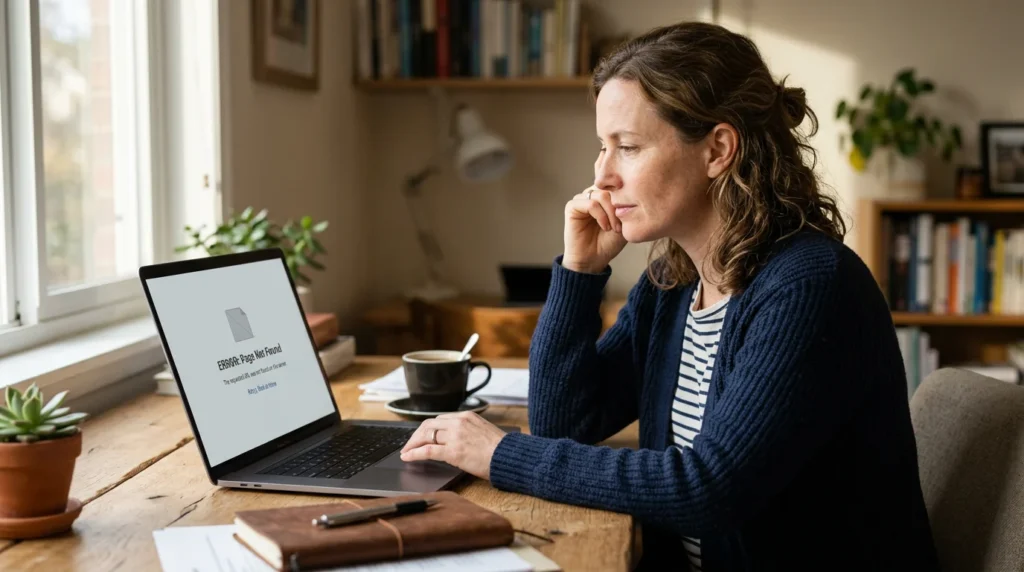
You open your website to check something quick, and instead of your homepage you get a blank white page. Or a stark line of text: “There has been a critical error on this website.” Or a message that your site can’t connect to its database. Your stomach drops. Customers are looking at this. Every minute it stays broken feels like money walking out the door.
Take a breath. An outage is stressful, but it is almost never the disaster it looks like in the first thirty seconds. WordPress powers more than 40 percent of the web precisely because it is resilient and recoverable. The overwhelming majority of “my site is down” emergencies come from a small handful of predictable causes, and each one has a clear path back. This guide walks you through that path calmly, in the order a professional would actually work through it.
First, Slow Down — and Resist the Urge to Delete
When a site breaks, the instinct is to start clicking things: deactivate everything, delete a plugin, edit a file you half-remember. That instinct is exactly how a five-minute fix becomes a five-hour one. Before you change anything, do two things.
- Make a note of what changed most recently. Did you update a plugin, install a new one, edit the theme, or switch hosting? The last change you made is your prime suspect roughly nine times out of ten.
- Confirm you have a recent backup before touching files or the database. If your host or a backup plugin took a snapshot in the last day or two, you have a safety net and can troubleshoot with confidence.
With those two things settled, you are ready to diagnose rather than guess.
Step One: Identify What Kind of “Down” You Have
“The site is down” can mean several very different things, and the error screen you see is a genuine clue, not just noise. Match what you’re seeing to one of the four common scenarios below.
The White Screen or “Critical Error” Message
A completely blank white page — often called the White Screen of Death — usually means PHP started running, hit a fatal error, and stopped before it could send anything to the browser. On modern WordPress you’ll more often see the friendlier “There has been a critical error on this website” message instead. Both point to the same family of causes: a plugin conflict, a theme problem, a bad snippet of custom code, or a PHP version mismatch. This is the single most common outage, and the good news is it’s also the most fixable.
“Error Establishing a Database Connection”
This message means WordPress loaded but couldn’t reach the database where your content lives. Around 70 percent of the time it traces back to incorrect database credentials — the name, username, password, or host — in your wp-config.php file, most often right after a site migration or a change of hosting provider. It can also mean the database server itself is temporarily overloaded or offline. Because the database failure stops WordPress early in its startup, both your public site and your dashboard usually go dark at the same time.
The 500 Internal Server Error
A 500 error is the server’s way of saying “something went wrong” before WordPress could even take over. It typically shows the host’s branding rather than yours. The usual culprits are a corrupted .htaccess file (frequently left behind by a misconfigured security or caching plugin) or an exhausted PHP memory limit. It looks alarming, but it points to a narrow set of fixes.
Locked Out of Your Dashboard
Sometimes the public site loads fine but you can’t log in, or wp-admin throws its own error. This changes your approach: you’ll likely need to work through your hosting file manager or FTP rather than the WordPress dashboard. Recovery Mode, covered below, is built for exactly this situation.
Turn On the Lights: Enable Debug Logging
A blank screen tells you nothing. WordPress can tell you a great deal more if you ask it to. Enabling debug logging turns a silent white page into a specific, readable error — usually naming the exact plugin file and line number responsible. It’s the difference between guessing and knowing.
In your wp-config.php file (edit it through your host’s file manager or over FTP), find the line that says “That’s all, stop editing!” and, just above it, add:
- define(‘WP_DEBUG’, true);
- define(‘WP_DEBUG_LOG’, true);
- define(‘WP_DEBUG_DISPLAY’, false);
This quietly writes every error to a file at wp-content/debug.log without showing it to your visitors. Open that file and look for a line beginning with “PHP Fatal error.” It will typically point at a path like /wp-content/plugins/plugin-name/plugin-file.php, which tells you precisely where to focus. When you’re done troubleshooting, set these values back to false so you’re not logging on a live site indefinitely.
The Two Fixes That Solve Most Outages
If your log points at a plugin or theme — or if you simply can’t get logging in place — these two isolation techniques resolve the large majority of critical errors. Work through them in order and change only one thing at a time so you always know what fixed it.
Isolate the Plugin
Plugins are the number-one cause of white screens and critical errors, usually because two of them clash or one hasn’t kept up with the current PHP version. To find the offender when you can’t reach the dashboard:
- Using your host’s file manager or FTP, open the wp-content folder and rename the “plugins” folder to something like “plugins-off.” This deactivates every plugin at once.
- Reload your site. If it comes back, you’ve confirmed a plugin is to blame.
- Rename the folder back to “plugins,” then rename each plugin’s individual subfolder one at a time, reloading the site after each, until the site breaks again. The plugin you just disabled is your culprit.
- Leave that one deactivated, restore the rest, and look for an update or an alternative for the problem plugin.
Rule Out the Theme
If disabling plugins doesn’t solve it, your active theme is the next suspect — especially after a theme update or an edit to its files. The quickest test is to switch temporarily to a default WordPress theme (one of the yearly “Twenty” themes). If you can reach the dashboard, activate it under Appearance. If you can’t, rename your active theme’s folder inside wp-content/themes; WordPress will fall back to a default theme automatically. If the site returns, the problem lives in your theme — often in a customized functions.php file — and that’s where you or your developer should look next.
Use Recovery Mode When You Can’t Reach the Dashboard
Since version 5.2, WordPress has included a built-in safety feature that many site owners don’t realize they have. When it detects a fatal error, it automatically emails the site administrator a special “Recovery Mode” link. That link lets you log into a protected version of your dashboard — where the broken plugin or theme is paused — while your regular visitors simply see the generic error page.
So before you dive into FTP, check the inbox tied to your admin email for a message from WordPress about a technical problem. It won’t always arrive (some errors break email too, and it goes to the admin address on file), but when it does, it’s the fastest way back in: click the link, deactivate the flagged plugin or theme from inside Recovery Mode, and your site is live again while you sort out a permanent fix.
Handling the Database Connection Error
If your specific error is “Error Establishing a Database Connection,” the plugin-and-theme dance won’t help — the problem is one layer deeper. Start with the credentials:
- Open wp-config.php and confirm that DB_NAME, DB_USER, DB_PASSWORD, and DB_HOST exactly match the values in your hosting control panel. A recent migration or a rotated password is the usual reason these drift out of sync.
- If the credentials are correct, the database server may be overloaded or temporarily down. This is common on budget shared hosting during traffic spikes, and it’s worth a quick message to your host to confirm.
- If your host offers a database repair option, or you’re comfortable enabling WordPress’s built-in repair tool, a corrupted table can sometimes be the cause.
Because database issues can involve your host’s server directly, this is often the point where a quick support ticket saves you an hour of digging.
When to Restore From a Backup
If you’ve isolated plugins and themes, checked your credentials, and the site still won’t behave, a clean restore from a recent backup is not admitting defeat — it’s often the smartest, fastest move. This is exactly why the very first step in this guide was to confirm you have one. Restoring rolls your site back to a known-good state, gets you online, and lets you reintroduce recent changes carefully rather than under pressure. A site that automatically backs up daily and stores those backups off-server turns a potential catastrophe into a minor inconvenience.
An Ounce of Prevention
Most outages are avoidable, and a few habits dramatically reduce your odds of ever seeing that critical-error screen:
- Keep WordPress core, themes, and plugins current, but stage or back up before major updates rather than updating blindly on a live site.
- Run a modern, supported PHP version, since most current plugins target PHP 8.1 or higher and mismatches are a frequent source of fatal errors.
- Use a reputable backup solution that runs automatically and stores copies somewhere other than your own server.
- Be selective with plugins — fewer, well-maintained plugins mean fewer conflicts and a smaller surface for things to break.
- Test significant changes on a staging copy of your site before pushing them live.
None of this requires you to be a developer. It requires a little routine and the confidence that comes from knowing what to do when something does go wrong — which, having read this far, you now have.
Back Online, and Ready Next Time
A downed website feels like an emergency, but for the vast majority of WordPress sites it’s a solvable one with a clear sequence: don’t panic, identify the type of error, turn on debug logging, isolate plugins and themes, use Recovery Mode when you’re locked out, and restore from a backup if all else fails. Work the steps in order and you’ll be surprised how often you’re back up within the hour.
If you’d rather not troubleshoot alone — or want a site that’s backed up, updated, and monitored so outages rarely happen in the first place — Orlando Web Services designs, hosts, and maintains WordPress websites for small businesses. Learn more at orlandowebservices.com.
Comments are closed